


StatusFlowPro / Documentation
Documentation
Learn how to configure StatusFlowPro, link dependent Jira issues, and troubleshoot automatic transitions.
How it works
StatusFlowPro transitions dependent Jira issues when their prerequisites reach statuses in Jira’s Done category. Teams represent dependencies through the app’s dedicated issue-link type. Administrators set destination-status preferences, so teams can change dependencies without creating a separate automation rule for each relationship.
When a prerequisite issue transitions to any status in Jira’s Done category, StatusFlowPro checks its dependent issues. A dependent issue transitions only when all its prerequisites are in statuses belonging to that category. Otherwise, it remains unchanged.
The status does not have to be named ‘Done.’ For example, Cancelled or Declined also qualifies if it belongs to the Done category.
Working with dependencies
Teams create and update issue links as dependencies change. A dependent issue can have several prerequisites, and one prerequisite can support several dependent issues. Each dependent issue is evaluated against its own prerequisites.
Dependency chains are also supported: an issue can depend on earlier work and act as a prerequisite for downstream work.
Workflow Overview (see the Workflow section below for a more detailed discussion of the StatusFlowPro process)
- Program managers, project managers, users, etc. designate the dependent tasks for a specific task by creating Linked Issues of the types sfp-updates or sfp-is updated by. This linked issue type is unique to StatusFlowPro, and is required for the app automation to function correctly.
- Teammates work on the prerequisite task as usual. When ready, they transition the prerequisite issue to a status in Jira’s Done category.
- StatusFlowPro evaluates each dependent issue against all of its prerequisites (see Evaluation and Automation below) and applies a transition only when every prerequisite is in a status belonging to Jira’s Done category.
Evaluation and Automation
When a prerequisite issue transitions to a status in Jira’s Done category, StatusFlowPro performs the following checks:
- Identify Linked Issues: The app reviews all linked issues and checks if any are of the type sfp-updates.
- Evaluate Predecessor Issues: For each linked issue of type sfp-updates, the app verifies that all prerequisites of the dependent issue are in statuses belonging to Jira’s Done category.
- Transition the Dependent Issue: If all prerequisites are in statuses belonging to Jira’s Done category, StatusFlowPro uses the destination status selected by a workflow exception or, otherwise, the highest-ranked status included in the dependent issue’s workflow. Backlog → To Do is an example, not a fixed transition.
Setup & permissions
Open the StatusFlowPro configuration page at least once before using the app. This loads the default settings. You can then adjust the configuration to suit your workflows. The page displays warnings if the license has expired or settings are misconfigured.
Changes on the configuration page are saved automatically.
Configuration Page
In your Jira instance, navigate to Settings -> Apps and click on StatusFlowPro to load the configuration page.
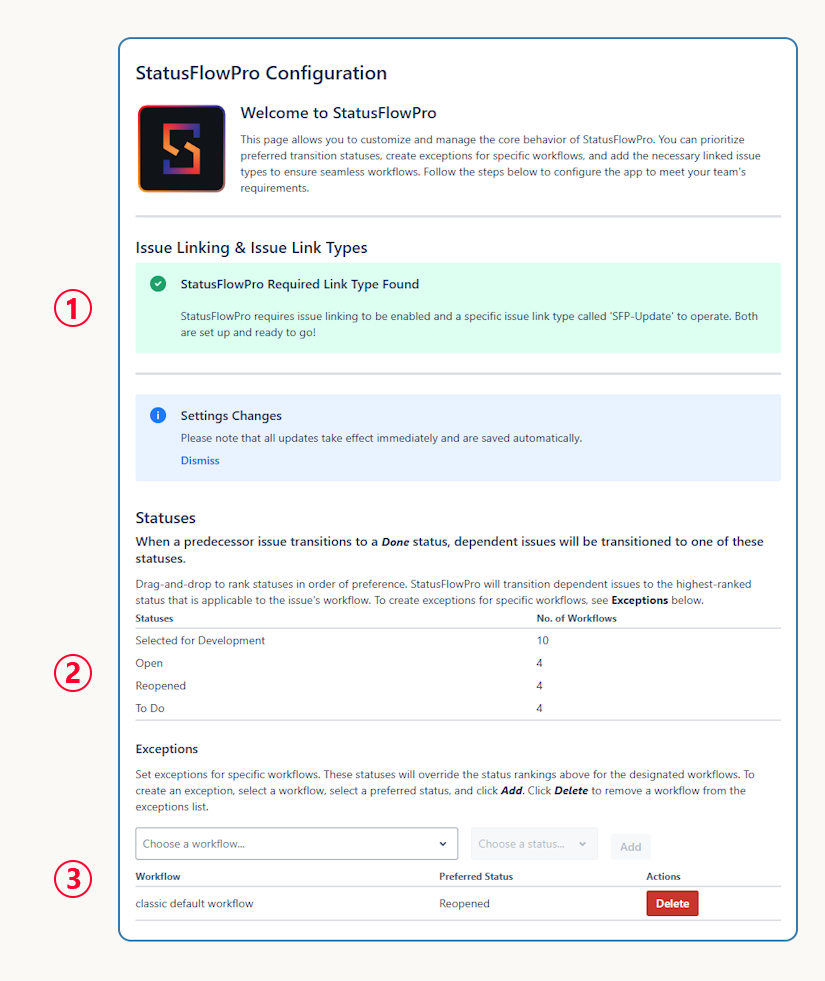
Issue Linking & Issue Link Types (see 1 below)
For StatusFlowPro to function properly, Jira’s issue linking feature must be enabled and a special link type called SFP-Update must exist. If issue linking is disabled, StatusFlowPro will display a notification and include a link to the Jira settings page. Once you enable issue linking, refresh the configuration page and StatusFlowPro will create the SFP-Update link type automatically.
Choosing the destination status
Use the status ranking table to set your preferred destination statuses across Jira. Drag statuses into order, with your first choice at the top.
When a dependent issue is ready to transition, StatusFlowPro checks its workflow and chooses the highest-ranked status included in that workflow. You do not need to configure each workflow separately.
For example, suppose To Do (ID 10003) ranks above Selected for Development:
- If the dependent issue’s workflow includes both statuses, StatusFlowPro chooses To Do (ID 10003).
- If its workflow includes Selected for Development but not To Do (ID 10003), it chooses Selected for Development, assuming no higher-ranked status applies.
Different Jira statuses can share the same name. Use the status ID to distinguish them when arranging the table.
Exceptions for specific workflows
An exception gives one workflow a preferred destination status that overrides the general ranking.
For example, your general ranking might put To Do first, while one team uses Selected for Development as its starting point. Add an exception for that team’s workflow and select Selected for Development. StatusFlowPro will use that status for issues in the designated workflow, even when To Do ranks higher in the table.
To add an exception:
- Under Exceptions, choose a workflow.
- Choose its preferred destination status.
- Click Add.
Click Delete to remove an exception. That workflow will then use the general status ranking again.
Only workflows with more than one status in the To Do category, excluding Backlog, appear in the exception selector.
Reviewing your configuration
Revisit the configuration page when your requirements change or the app displays a warning that needs attention.
Dependency workflow
Workflow Details
Create dependencies using Jira’s Linked Issue feature, then update issue statuses as work progresses.
- A manager, project lead, user, or other team member creates a set of issues, some of which are dependent upon others.
- The dependent issues are linked to their predecessor issues using the special sfp-is updated by linked issue type. Similarly, the predecessor issues will be linked as sfp-updates.
- Users work through the issues as usual and update statuses as appropriate.
- When a prerequisite issue transitions to a status in Jira’s Done category, each dependent issue linked using sfp-is updated by is checked against all its prerequisites. It transitions only when every prerequisite is in a status belonging to Jira’s Done category. The destination is the status selected by a workflow exception or, otherwise, the highest-ranked status included in the dependent issue’s workflow. Backlog → To Do is an example, not a fixed transition.
Dependency rules and limits
- A dependent issue can have multiple prerequisite issues. StatusFlowPro checks that all prerequisites are in statuses belonging to Jira’s Done category before transitioning the dependent issue.
- Dependencies are not hierarchical. Tasks or Subtasks can be predecessor issues for an Epic or Story, and the relationship can work in both directions.
- Any user that has the necessary Jira permissions to link issues can also create dependencies in StatusFlowPro.
- Dependencies can be created at any time before the prerequisite issue transitions to a status in Jira’s Done category.
- Up to 50 dependencies can be created for a single issue.
- Dependencies can span multiple epics, sprints, projects, etc., so long as they are within the same Jira instance and permissions are set appropriately.
Workflow Security
StatusFlowPro processes Jira data within Atlassian’s Jira Cloud ecosystem. It does not transmit that data to Alteris Edge or third parties.
Troubleshooting & support
If a dependent issue does not transition, review these requirements from the configuration and workflow guidance:
- Open the StatusFlowPro configuration page at least once to load its default settings.
- Check configuration-page warnings for an expired license or misconfigured settings.
- Make sure Jira issue linking is enabled and the required SFP-Update link type exists. After enabling issue linking, refresh the configuration page so StatusFlowPro can create the link type.
- Use the sfp-updates / sfp-is updated by relationship, and create dependencies before the prerequisite transitions to a status in Jira’s Done category.
- Confirm that all prerequisites are in statuses belonging to Jira’s Done category. Check the destination status selected by a workflow exception or, otherwise, the highest-ranked status included in the dependent issue’s workflow.
Need help?
Visit our Support page for help with our apps.