


Field Echo / Documentation
Documentation
Create one-way field mappings, understand permissions and compatibility, and manage synchronization across related Jira issues.
Overview
Field Echo automatically synchronizes field values between related Jira issues. Instead of manually updating the same information in multiple places, administrators and teams can create field mappings that keep connected issues aligned automatically.
Field Echo is designed for situations where information must remain consistent across multiple issues, projects, or teams. Common examples include synchronizing due dates, priorities, custom fields, milestones, and reporting data.
Important: Field Echo does not create or modify workflows. It only synchronizes values between fields that you explicitly map.How it works
Field Echo follows a simple process:
- ✓ Issues: Select a target issue. The current issue is already set as the source issue.
- ✓ Fields: Choose a source field and a compatible target field.
- ✓ Save: Save the mapping.
- ✓ Sync: Field Echo monitors updates and automatically pushes changes to the target issue.
Once a mapping is created, synchronization occurs automatically whenever the source field changes.
Important: Field Echo uses one-way synchronization. Changes flow from the source issue to the target issue. Updates made directly to the target field are not synchronized back to the source.Mappings
Creating Mappings
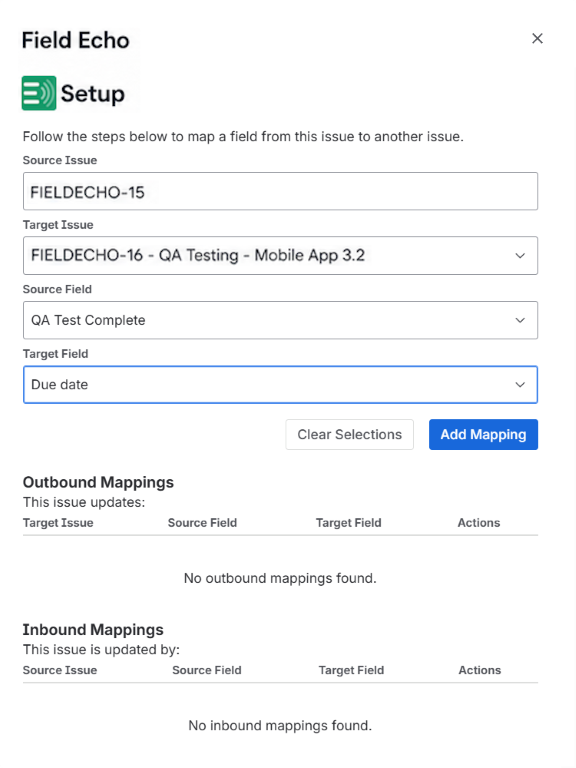
Field Echo mappings are created directly from a Jira issue using the Field Echo panel.
Each mapping connects a source field on the current issue to a compatible target field on another issue. Once saved, changes to the source field are automatically synchronized to the target field.
Once a mapping is created, synchronization occurs automatically whenever the source field changes.
- Open the Field Echo panel from the Apps menu (three-dot menu) on the source issue.
- Search for and select a target issue.
- Select a source field from the current issue.
- Select a compatible target field from the destination issue.
- Click Add Mapping.
The new mapping becomes active immediately and will begin synchronizing when the source field changes.
Compatibility Validation
Field Echo only allows mappings between compatible field types. The field selectors automatically filter available options to prevent invalid configurations.
Examples of supported mappings include:
- Text → Text
- Date → Date
- Number → Number
- Array[string] - Array[string] (e.g., Labels)
If a field does not appear in a dropdown list, it is either not editable, not compatible with the selected field, or not available to the current user.
Permission Validation
Field Echo validates permissions while mappings are being created.
Users can only create mappings to issues and fields that Jira allows them to access and edit. If a destination issue is not available for synchronization, Field Echo prevents the mapping from being created.
This ensures mappings are valid before they are saved.
Managing Existing Mappings
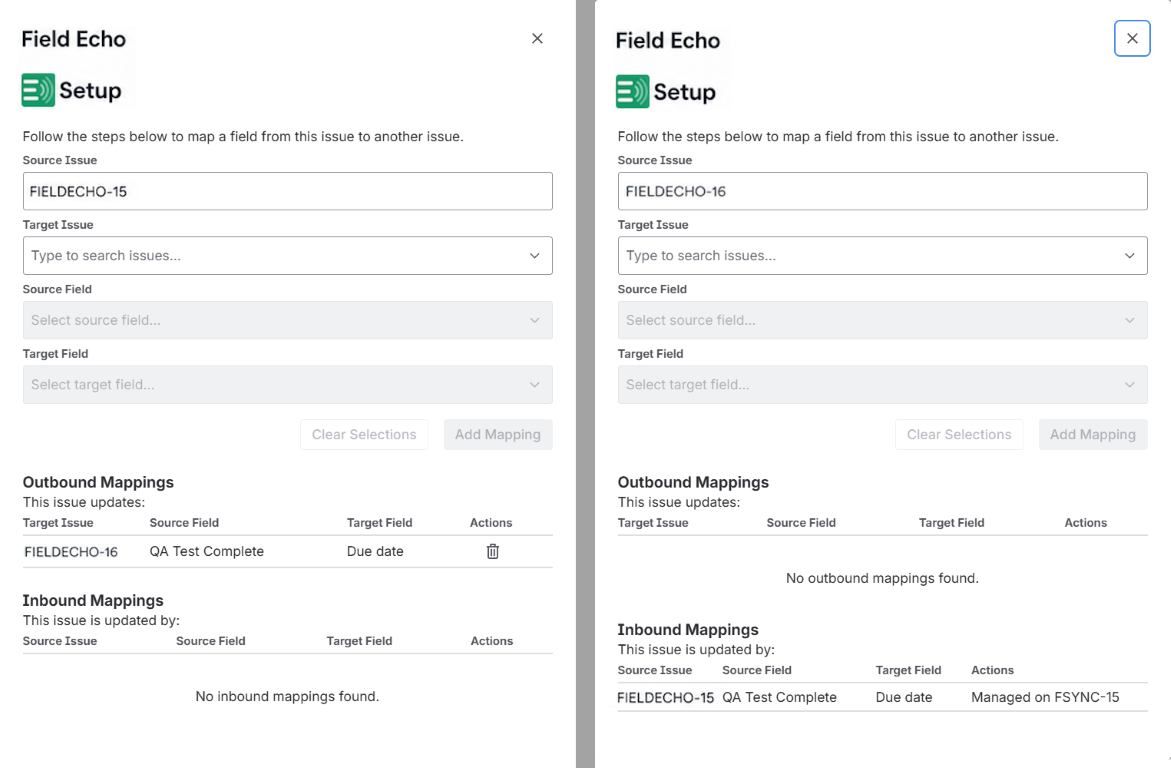
Existing mappings are displayed in two tables:
Outbound Mappings
- Mappings managed by the current issue.
- Can be deleted from the source issue.
Inbound Mappings
- Mappings managed by another issue.
- Read-only reference view.
To modify or remove a mapping, navigate to the source issue that owns the mapping.
Admin Console
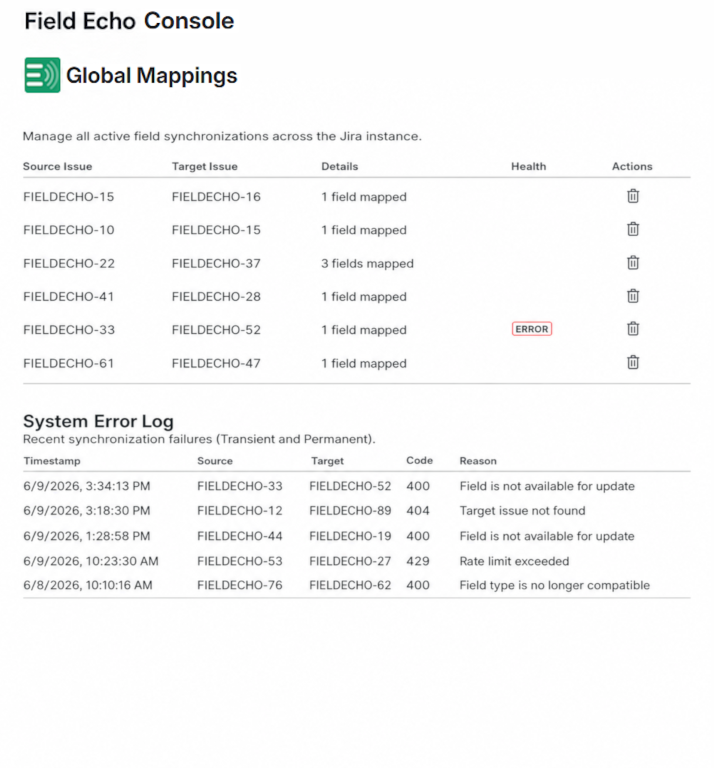
The Field Echo Console provides a centralized view of all active field mappings across the Jira instance. Administrators can review synchronization relationships, monitor recent failures, and remove mappings when necessary.
The console is available from Jira Administration → Apps → Field Echo Console.
What you can see
- All active field mappings across the Jira instance.
- Source and target issue relationships.
- Synchronization errors recorded by the application.
- Mapping health indicators for permanent failures.
System Error Log
Field Echo records recent synchronization failures in the System Error Log.
Common entries include:
- 404 Not Found: The target issue no longer exists.
- 400 Bad Request: The target field is no longer valid for the update.
- 429 Too Many Requests: Jira rate limiting temporarily prevented synchronization.
Error messages are presented in a human-readable format to simplify troubleshooting.
Note:Not all logged errors indicate a broken mapping. Temporary conditions such as rate limiting or Atlassian service interruptions may resolve automatically.Mapping Health
Mappings that encounter a permanent 404 Not Found error are marked with an ERROR status in the console.
This typically indicates that the target issue has been deleted or is no longer accessible.
Removing a Mapping
Administrators can remove any mapping directly from the Field Echo Admin Console.
Removing a mapping immediately stops future synchronization and removes the relationship from both issues.
Important: Deleting a mapping does not modify existing field values. It only removes the synchronization relationship going forward.Permissions & Security
Field Echo is designed to operate within Jira's existing permission model and does not introduce additional access paths to issue data.
User Permissions
When creating a mapping, Field Echo validates access using the permissions of the current user.
Users can only create mappings for issues and fields that Jira allows them to view and edit. Fields that are unavailable, incompatible, or restricted by permissions are automatically excluded from the selection lists.
Synchronization Permissions
After a mapping is created, Field Echo performs synchronization using the application's permissions.
This allows mapped issues to remain synchronized regardless of which authorized user updates the source issue.
Data Storage
Field Echo stores only the information required to maintain field mappings and synchronization relationships. All information is stored locally within the instance.
Stored data includes:
- Source issue identifiers
- Target issue identifiers
- Source and target field identifiers
- Synchronization metadata
- Recent synchronization error logs
Field Echo does not export Jira data to external services.
Error Handling
Synchronization failures are logged and displayed in the Field Echo Console to assist administrators with troubleshooting.
Permanent failures, such as deleted target issues, are clearly identified so corrective action can be taken.
Security Model
- Runs entirely within Atlassian Forge.
- Uses Jira's native authentication and authorization mechanisms.
- No external databases or third-party analytics services.
- No customer data is shared outside the Atlassian platform.
Troubleshooting
Mapping is not synchronizing
Verify the following:
- The mapping exists in the Outbound Mappings table.
- The source field was modified after the mapping was created.
- The target issue still exists.
- The target field still exists and remains editable.
- No errors have been recorded in the Field Echo Admin Console.
I cannot find the field I want to map
Field Echo only displays fields that are:
- Compatible with the selected field type.
- Editable on the target issue.
- Available to the current user.
If a field does not appear, verify that the field exists and can be edited in Jira.
I cannot find the target issue
Field Echo only allows mappings to issues that the current user can access.
Verify that you have permission to view and edit the destination issue.
An ERROR badge appears in the Admin Console
An ERROR badge typically indicates that the target issue no longer exists or cannot be reached.
Review the System Error Log for additional details and either correct the issue or remove the mapping.
A mapping was deleted accidentally
Deleted mappings cannot be restored. Create a new mapping to re-establish synchronization.
Frequently Asked Questions
Does Field Echo support custom fields?
Yes. Field Echo supports compatible Jira custom fields in addition to standard Jira fields.
Does Field Echo work across projects?
Yes. Mappings can be created between issues in different Jira projects, provided the user has the required permissions.
Can I create multiple mappings between the same two issues?
Yes. Multiple fields can be synchronized between the same source and target issues.
Does Field Echo support two-way synchronization?
No. Field Echo uses one-way synchronization: changes flow from the source issue to the target issue. This helps prevent synchronization loops and conflicting updates that can cause errors.
Does Field Echo use Jira Automation?
No. Field Echo operates independently and does not require Jira Automation rules.
Can Field Echo create synchronization loops?
No. Field Echo includes loop-prevention safeguards and will block mappings that would create circular synchronization paths.
Does Field Echo modify workflows or project settings?
No. Field Echo only synchronizes the fields you explicitly map. It does not modify workflows, permissions, issue security schemes, or project configurations.
Where can I view all mappings?
Administrators can view all mappings from the Field Echo Admin Console. The console also provides access to recent synchronization errors and mapping management tools.
Need help?
Visit our Support page for help with our apps.